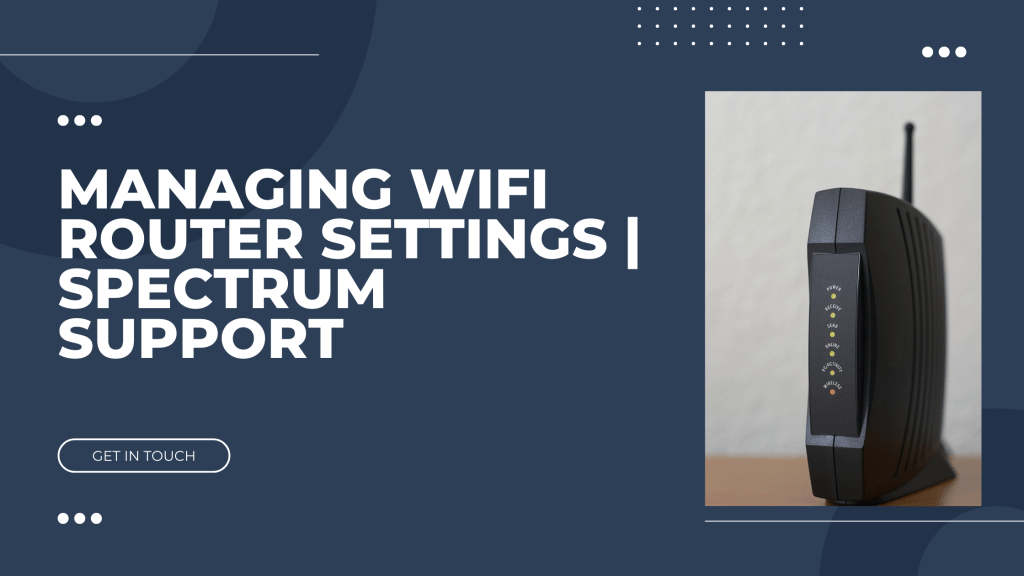
Managing your WiFi router settings is crucial for ensuring optimal network performance and security. Whether you’re a seasoned tech enthusiast or a novice user, understanding how to navigate your router’s settings can make a significant difference. This guide, brought to you by Network Tech Blog, will walk you through the essential steps to manage your Spectrum router settings, including the all-important Spectrum router login process.
Why Manage Your Router Settings?
Your WiFi router is the gateway to your home network, controlling the flow of data between your devices and the internet. Properly managing your router settings can help you:
- Enhance network security
- Improve connection speed and reliability
- Customize network preferences
- Monitor connected devices
- Troubleshoot connectivity issues
How to Access Spectrum Router Login
The first step in managing your router settings is to access the router’s login page. Here’s how you can do it:
- Connect to Your Network: Ensure your device is connected to your Spectrum WiFi network.
- Open a Web Browser: Launch your preferred web browser (Chrome, Firefox, Safari, etc.).
- Enter the Router IP Address: In the address bar, type in your router’s IP address. For most Spectrum routers, this is usually 192.168.1.1 or 192.168.0.1.
- Login Credentials: You will be prompted to enter your username and password. If you haven’t changed these, the default credentials are often found on a sticker on the router or in the router’s manual. Typically, the default username is admin, and the default password is password.
Changing Your WiFi Network Name and Password
One of the first settings you might want to change is your WiFi network name (SSID) and password. This helps personalize your network and enhance security.
- Access the Wireless Settings: Once logged in, navigate to the Wireless settings section.
- Change the SSID: Enter a new network name in the SSID field.
- Set a New Password: In the password field, enter a strong, unique password. Use a mix of letters, numbers, and special characters for enhanced security.
- Save Changes: Apply the changes and reconnect your devices using the new network credentials.
Setting Up Guest Network
A guest network allows visitors to access the internet without gaining access to your primary network. This keeps your main network secure.
- Navigate to Guest Network Settings: In the router’s settings, find the Guest Network option.
- Enable Guest Network: Turn on the guest network feature.
- Set SSID and Password: Choose a distinct SSID for the guest network and set a password.
- Save Changes: Apply the changes. Your guest network is now active.
Updating Firmware
Firmware updates improve your router’s performance and security. Regularly check for updates to keep your router functioning optimally.
- Find Firmware Update Section: In the router’s settings, locate the Firmware Update section.
- Check for Updates: Click on the option to check for the latest firmware updates.
- Install Updates: If an update is available, follow the instructions to download and install it.
Managing Connected Devices
Monitoring the devices connected to your network helps you identify and manage bandwidth usage and security threats.
- Access Device List: In the router settings, find the section that lists connected devices.
- View Details: Check the details of each connected device, including IP address and connection status.
- Block Unwanted Devices: If you see an unfamiliar device, you can block it from accessing your network.
Enhancing Network Security
To ensure your network is secure, consider implementing these additional security measures:
- Enable WPA3 Encryption: If your router supports it, switch to WPA3 encryption for better security than WPA2.
- Disable WPS: Wi-Fi Protected Setup (WPS) can be a security risk. Disable it if not in use.
- Create a Strong Admin Password: Change the default router login credentials to a strong, unique password.
Troubleshooting Common Issues
Even with proper management, you may encounter connectivity issues. Here are some tips for troubleshooting:
- Restart Your Router: A simple restart can resolve many issues.
- Check Cables and Connections: Ensure all cables are securely connected.
- Reset to Factory Settings: As a last resort, reset your router to factory settings and reconfigure it.
By following these guidelines, you can effectively manage your Spectrum router login settings and maintain a secure, efficient network. For more detailed assistance, visit Spectrum Support or refer to your router’s user manual.
For further tips and insights, keep following Network Tech Blog. Happy networking!


 Network Tech Blogs USA
Leave a comment