When your internet connection starts acting up, one of the most effective and simple solutions can be to reset your Spectrum router. Whether you’re experiencing slow speeds, intermittent connectivity, or no connection at all, a router reset can often resolve these issues. In this blog, we’ll guide you through the process of how to reset your Spectrum router and offer some troubleshooting tips to ensure a smooth reset.
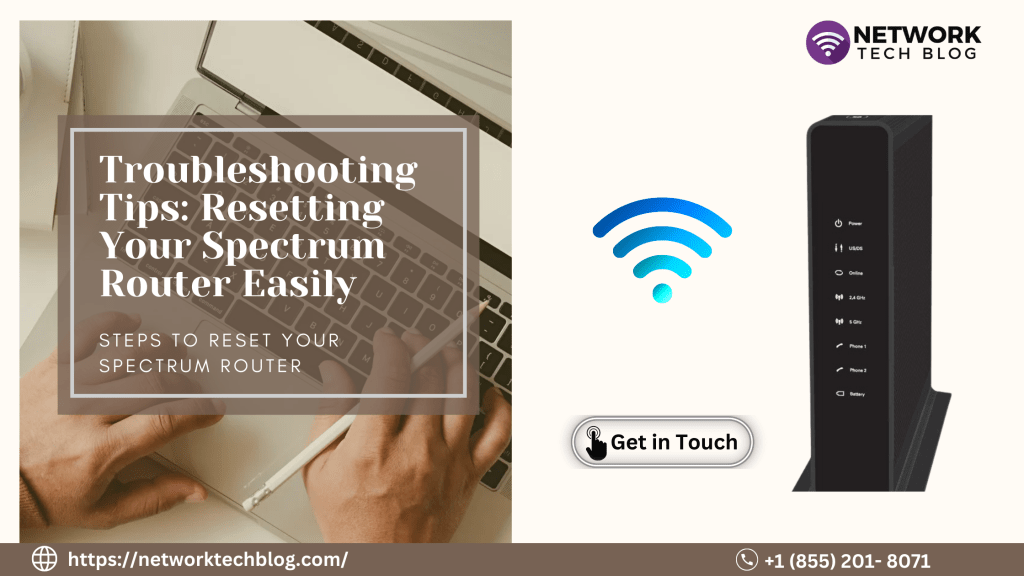
Why Reset Your Router?
Before diving into the Spectrum router reset process, it’s helpful to understand why this step is beneficial. Over time, routers can become overloaded with data, leading to performance issues. Resetting the router clears the cache, resolves conflicts, and often restores a more stable and faster connection.
Steps to Reset Your Spectrum Router
1. Locate the Reset Button:
– Find the reset button on your Spectrum router. This is typically a small, recessed button on the back or bottom of the device. You might need a paperclip or a pin to press it.
2. Press and Hold the Reset Button:
– Press and hold the reset button for about 10 seconds. You will notice the lights on the router start to blink. This indicates that the reset process has started.
3. Wait for the Router to Restart:
– After releasing the button, the router will begin the reset process. This can take a few minutes. The lights on the router will stabilize once the reset is complete.
4. Reconnect Your Devices:
– Once the Spectrum router reset is done, you’ll need to reconnect your devices to the Wi-Fi network. Use the default network name (SSID) and password, usually found on a label on the router.
Troubleshooting Tips Post-Reset
Even after you reset your Spectrum router, you might encounter some issues. Here are a few troubleshooting tips:
– Check Your Connections:
Ensure all cables are securely connected. A loose cable can prevent the router from functioning correctly even after a reset.
– Update Firmware:
Sometimes, outdated firmware can cause connectivity problems. Log in to your router’s admin panel and check if there are any firmware updates available.
– Reconfigure Settings:
After a reset, the router will return to factory settings. If you had customized your network settings (like the Wi-Fi name and password), you’ll need to reconfigure them.
– Contact Spectrum Support:
If you continue to experience issues, it might be time to reach out to Spectrum’s customer support. They can offer advanced troubleshooting and check if there are any service outages in your area.
Conclusion
Knowing how to reset your Spectrum router is a valuable skill that can save you time and frustration. It’s a simple yet effective step to take when you encounter internet connectivity issues. Remember, a reset Spectrum router can often restore your internet to optimal performance and help you get back online quickly. Follow the steps outlined above, and don’t hesitate to seek additional support if needed.
By following these tips, you can ensure a smoother and more reliable internet experience with your Spectrum service. Happy browsing!


 Network Tech Blogs USA
Leave a comment