In order to know how to log in to your Spectrum router, you’ll typically need to follow these steps:
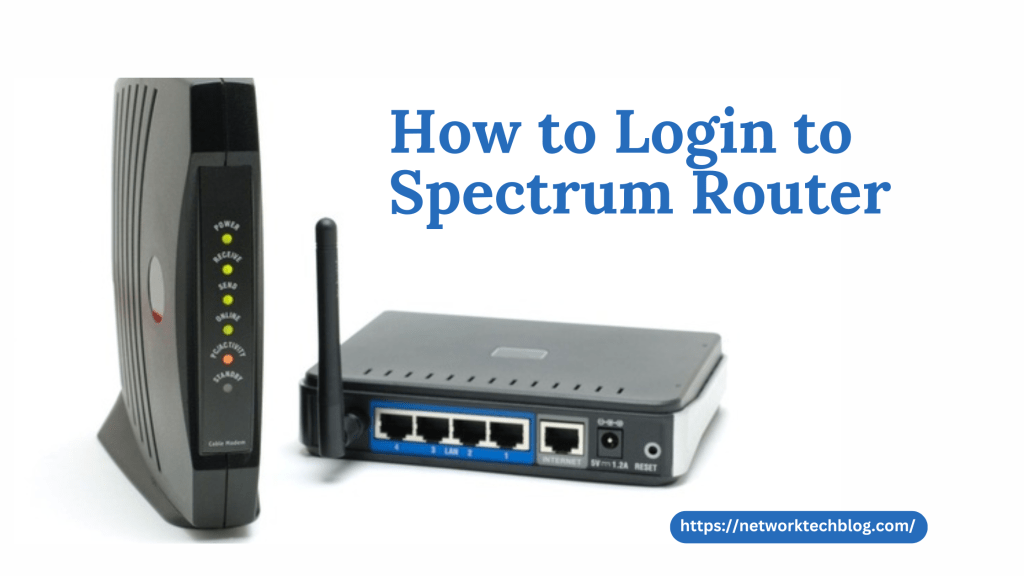
- Connect to Your Router: Make sure your computer or device is connected to your Spectrum router either via Ethernet cable or Wi-Fi. For a wired connection, plug an Ethernet cable into one of the LAN ports on the router and connect the other end to your computer’s Ethernet port. For a wireless connection, connect to your router’s Wi-Fi network using the SSID (network name) and password located on the router.
- Open a Web Browser: Open a web browser like Google Chrome, Mozilla Firefox, or Microsoft Edge on your connected device.
- Enter Router’s IP Address: In the address bar of your web browser, type in the default IP address for your Spectrum router. The default IP address for most Spectrum routers is either 192.168.0.1 or 192.168.1.1. Press Enter after typing the IP address.
- Enter Username and Password: You’ll be prompted to enter a username and password. By default, Spectrum routers often have the following default login credentials:
- Username: admin
- Password: password
- Try these credentials first: If they don’t work, check the sticker on your router for the correct username and password. Sometimes, the default login credentials might have been changed by the user. If you can’t find the correct credentials, you may need to reset your router to factory settings.
- Access Router Settings: After entering the correct username and password, you should have access to the router’s settings interface. From here, you can configure various settings such as Wi-Fi network name (SSID), Wi-Fi password, security settings, port forwarding, and more.
- Make Changes (if needed): Once logged in, you can make any necessary changes to your router’s settings. Be cautious when making changes, especially if you’re not familiar with router configurations, as incorrect settings could disrupt your network connectivity.
- Logout: After you’ve finished configuring your router, it’s a good idea to log out of the router’s settings interface for security purposes. Look for a “Logout” or “Sign Out” option within the router’s interface and click on it.
How to Change Your Spectrum WiFi Name and Password
To change your Spectrum WiFi name (SSID) and password, follow these steps:
- Access Router Settings: First, log in to your Spectrum router’s settings interface. You can do this by opening a web browser on a device connected to your Spectrum network and typing the router’s IP address into the address bar. The default IP address for most Spectrum routers is either 192.168.0.1 or 192.168.1.1. Press Enter after typing the IP address. You’ll be prompted to enter a username and password.
- Login Credentials: Enter the username and password to access and know how to login your spectrum router. The default login credentials for many Spectrum routers are:
- Username: admin
- Password: password
If these credentials don’t work, check the sticker on your router for the correct username and password. If you’ve changed the login credentials in the past and can’t remember them, you may need to reset your router to factory settings.
- Navigate to Wireless Settings: Once logged in, navigate to the wireless settings section of the router’s interface. This section may be labeled differently depending on your router model, but look for options related to wireless or WiFi settings.
- Change WiFi Name (SSID): Locate the field where the current WiFi name (SSID) is displayed. You should see an option to edit or change the SSID. Enter the new WiFi name (SSID) that you’d like to use for your network. This is the name that will be visible to devices when they search for available WiFi networks.
- Change WiFi Password: Look for the field where the current WiFi password is displayed. You should see an option to edit or change the password. Enter the new WiFi password that you’d like to use for your network. Make sure to choose a strong password that combines letters, numbers, and special characters for security purposes.
- Save Changes: After entering the new WiFi name and password, find the option to save or apply the changes. Click on this option to save your new settings. Your router may need a moment to apply the changes, and during this time, your WiFi connection may briefly disconnect.
- Reconnect Devices: Once the changes are saved and your router has restarted, you’ll need to reconnect your devices to the WiFi network using the new SSID and password. You can do this by selecting the new WiFi network name (SSID) from the list of available networks on each device and entering the new password when prompted.
What is the default login for Spectrum modem?
The default login credentials for Spectrum modems can vary depending on the specific model. However, the most common default login credentials for Spectrum modems are:
- Username: admin
- Password: password
Try entering these credentials to log in to your Spectrum modem’s settings interface. If these credentials don’t work, check the sticker on your modem for the correct username and password. Sometimes, ISPs provide customized login credentials or instructions for accessing the modem settings. If you’ve changed the login credentials in the past and can’t remember them, you may need to reset your modem to factory settings.
Conclusion:
To know how to log in your Spectrum router involves accessing its settings interface through a web browser using the router’s default IP address, entering the correct username and password (typically “admin” and “password”), navigating to the desired settings, making any necessary changes, and logging out securely. It’s essential to keep login credentials secure and consider changing them from the default settings for added security. If encountering difficulties, refer to the router’s manual or contact Spectrum support for assistance.


 Network Tech Blogs USA
Leave a comment